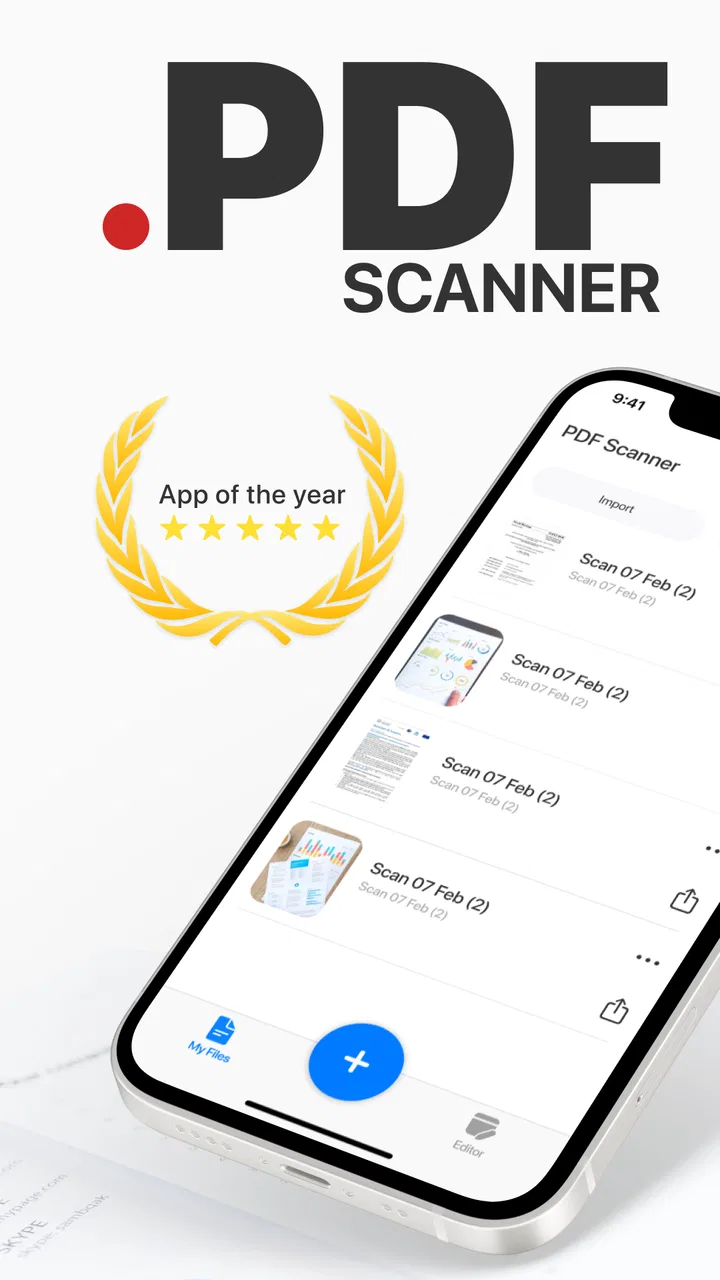
PDF scanner - Scan Documents
- 4.4
- Rating
- 1.00M
- Installs
- Free
- Price
 Analysis by App-foxy
I tried PDF scanner - Scan Documents as a practical business tool rather than treating it like a full office suite. Its purpose is straightforward: use a phone to scan documents, turn them into PDF files, and share them. That focus is useful when I need to send a receipt, signed page, form, or small stack of paperwork without finding a separate scanner.
The app comes from Captain Show LLC and sits in the Business category. It is free to install, rated for Everyone, and has built a sizeable audience with more than a million installs. Its average score is 4.4, which suggests that the basic workflow works well for many people, although a store score cannot tell me whether it suits every document habit.
My overall impression is that this is best understood as a convenient phone-based document utility. It can replace occasional trips to a printer or scanner, especially for people who only need clean digital copies from time to time. It is less convincing as a complete document-management system for someone who needs advanced editing, detailed filing, or a heavily automated office workflow.
You May Also Like

 Blood Strike: 2.5 Anniversary
Blood Strike’s Loadouts Turn Every Drop Into a Tactical Gamble
A close look at Blood Strike’s custom loadouts: how fast access to signature weapons reshapes its battle royale rhythm, rewards preparation, and narrows the gap between fights.

 Pandora - Music & Podcasts
Pandora’s Music Is Easy to Start, but Harder to Recover
Pandora’s strength is its low-effort path from a seed to a station. Its weak spot is how much confidence it asks you to place in connection, setup, and quiet recovery.

 8 Ball Pool
 Is Built on Rivalries, Rematches, and Routine
A close look at the rivalries, rematches, shared routines, and unanswered safety questions that turn a quick pool match into a persistent mobile community.

 Samsung Music
’s Quiet Strength Is Playing What You Already Own
Its reach comes less from spectacle than from dependable access to a personal library. That simplicity is both the app’s strongest retention engine and its ceiling.

 AccuWeather: Weather Radar
AccuWeather Review: A Quick, Clear Forecast for Everyday Decisions
For everyday plans, the best forecast is the one you can understand quickly. AccuWeather makes rain timing, radar, and local conditions easy to act on, with a few trade-offs.

 Hill Climb Racing
Why Hill Climb Racing Still Turns Crashes Into One More Run
A tiny car, a bumpy hill and one more upgrade: Hill Climb Racing keeps resurfacing because its simple chaos makes every near-miss feel personal.
More From Our News Desk



How the free access affects its value
The most important cost detail is easy to understand: the app itself is free. That makes it approachable for a student, freelancer, employee, or household user who wants to test the scanning process before committing money. The free entry point also changes how I judge it. I do not expect the same depth as a paid professional scanning package, but I do expect the basic capture, conversion, and sharing path to be practical.
There are in-app purchases ranging from $0.99 to $29.99 per item. Because those purchases can differ in purpose and value, I would not treat the free download as proof that every useful capability is included at no cost. My advice is to try the complete task you actually need first: capture a page, inspect the resulting PDF, and share it through your normal method. If that routine already works, the free access may be enough for occasional use.
For regular business users, the purchase question is more personal than simply asking whether the app is cheap. Someone scanning a few documents each month may get excellent value without paying beyond the free installation. Someone who handles paperwork every day should examine the in-app purchase screen carefully and decide whether any paid option solves a real bottleneck rather than paying merely for extra convenience.
I appreciate that the pricing structure does not force every new user to buy immediately. At the same time, I would avoid assuming that a free scanner automatically replaces every paid alternative. Paid apps often justify their cost through deeper organization, export controls, or more specialized document processing. The right comparison is not “free versus expensive”; it is “does this app complete my particular document job with less effort?”
The basic workflow is simple, but preparation matters
The first useful habit is to prepare the page before opening the camera. I get better results when the document is flat, the background contrasts with the paper, and the light comes from the side rather than creating a bright reflection. This is not a special feature of the app, but it makes a noticeable difference to the PDF I end up sharing.
For a single receipt or form, the appeal is speed. I can frame the page, check the captured image, convert it, and send the result without moving to a desktop. For several pages, I would pause after each capture and confirm that corners, signatures, and small print are visible. A fast scan is not useful if I discover later that the final page is tilted or partly cut off.
One of the more valuable practical choices is deciding when to create one multi-page file and when to create separate PDFs. A contract, application, or expense packet usually makes more sense as one document because the recipient can open and archive it as a unit. Individual receipts or pages intended for different people are easier to manage separately. Thinking about the destination before scanning prevents needless rework.
I also recommend checking the filename before sharing. A generic camera-style name can be confusing once several documents accumulate in a phone’s storage. Giving a file a useful label based on the recipient, purpose, or month makes the app more valuable as part of a workflow, even if the scanning itself takes only a moment.
Where it helps in everyday work
A realistic example is a freelancer finishing an afternoon of errands. They receive a paper receipt, need to send it to an accountant, and do not want to wait until they return to a computer. With this app, the phone can become the capture point: scan the receipt, convert it into a PDF, inspect the image, and share it while the context is still fresh. That is a small task, but removing the extra trip is exactly where a mobile scanner earns its place.
I can see similar value for a parent completing a school form, a tenant sending a signed document, or a small business owner forwarding supplier paperwork. The app is especially sensible when the original paper is temporary and the recipient specifically expects a PDF rather than a photograph. The conversion step gives the file a more deliberate document format than simply attaching an image from the gallery.
Another useful workflow is a quick backup before paper is filed away. I would scan the page, verify that the important details are readable, and then share or store it using the phone’s usual tools. This is not a replacement for a carefully maintained archive, but it can reduce the risk of losing a one-off document during travel or a busy workday.
The app can also help when several people need the same paperwork. Instead of photographing a page repeatedly for different recipients, I can create one PDF and distribute that copy. The trade-off is that I remain responsible for checking whether the document contains private information before sending it to a group or using a broad sharing destination.
What the app does well for a mobile scanner
The strongest benefit is the directness of the idea. I do not have to think about a large suite of unrelated tools before starting a scan. The app is aimed at the moment when a physical page needs to become a shareable PDF, and that narrow purpose makes sense on a phone.
It is also more convenient than using a standard camera when the recipient expects a document file. A camera photo can be perfectly readable, but it may arrive in an awkward format, sit among personal pictures, or require another conversion step. A dedicated scanner app puts the document task first, which is valuable when I am trying to finish paperwork rather than collect images.
The free installation lowers the risk of experimenting. I can see whether my phone, lighting, document sizes, and sharing habits work with the app before considering any paid purchase. That matters for occasional users who would not benefit from paying for a full document suite they rarely open.
The audience size and 4.4 average rating also give me some confidence that the concept is not obscure or abandoned in practice. I would still judge it by my own scans, but a broad install base means a new user is choosing an established mobile utility rather than an untested idea.
Trade-offs compared with familiar alternatives
The most obvious alternative is the phone’s normal camera. For a page that only needs to be viewed by one person, a photograph may be faster. The dedicated app becomes more worthwhile when I need a PDF, several pages in one file, or a cleaner document-oriented handoff. If I only take an occasional picture of a whiteboard or receipt for myself, installing a scanner app may add more steps than it removes.
Another alternative is a printer or office scanner. Dedicated hardware remains the better choice for high-volume paperwork, repeated batches, or situations where consistent alignment and dependable output matter more than mobility. A phone is convenient, but I would not choose it for a large archive project unless I had no practical access to a scanner.
Cloud office suites can be stronger for teams that already organize files, comments, and revisions in one shared workspace. PDF scanner - Scan Documents is more appealing when the immediate need is capture and sharing rather than collaboration. If my real problem is version control across several colleagues, a broader office platform may save more time after the scan is complete.
Paid scanning tools may also be preferable for specialized work. Legal, accounting, or administrative users who require a carefully controlled archive should compare export behavior, organization, and their company’s document rules before settling on a free mobile utility. I would not use a convenient scan as the only copy of an important original without a separate storage plan.
Small habits that improve the result
I would scan on a plain surface and keep the phone parallel to the page. Holding the phone at an angle can make one edge look narrower and can complicate reading, especially on forms with boxes or lines. Good positioning is a simple way to reduce the need for repeated captures.
For multi-page documents, I would keep the pages in order beside me before starting. This avoids mixing pages when interruptions occur. After conversion, I would review the first, middle, and final pages rather than assuming that a successful capture animation means the entire document is usable.
Receipts deserve extra attention because their print can be faint, narrow, or crowded. I would avoid strong overhead glare and make sure the total, date, and merchant information are visible before sharing. A receipt that looks acceptable in a thumbnail may not be adequate when someone needs to read a small line item.
Privacy is another reason to slow down. Scanned forms may contain addresses, signatures, account details, or identification information. I would check the recipient and sharing destination every time, particularly when using a document created in a public place. The app makes sharing convenient, but convenience should not replace a final privacy check.
I would also keep the original paper when it has legal, financial, or administrative importance. A phone-generated PDF can be useful for sending and reference, but it should not automatically be treated as a substitute for the original document. That distinction is important for anyone tempted to discard paperwork immediately after scanning.
Who will get the most value
This app is a good match for people who scan occasionally and need a quick route from paper to PDF. Freelancers, students, renters, parents, and small business owners are likely to understand its value quickly because their document needs are real but not necessarily large enough to justify dedicated hardware or a complex subscription-based suite.
It also suits users who work away from a desk. A phone-based workflow is useful during travel, client visits, home appointments, or shared office days. In those situations, the ability to finish the document task where it happens can be more important than having every advanced option available in a desktop program.
I would be more cautious about recommending it as the main tool for a busy administrative department. High-volume operators need a repeatable process, consistent naming, dependable storage, and perhaps integration with existing systems. A free mobile scanner may still be useful as a backup, but it should not be selected solely because it is easy to install.
People who dislike reviewing files before sending them may also be poor candidates. The app can make capture fast, but the user still needs to verify framing, page order, readability, and recipient details. Anyone expecting a single tap to produce a perfect professional archive may find the manual checks frustrating.
Device fit and practical expectations
The app supports devices running Android 9 or later, so compatibility is reasonably broad for many Android phones. I would still consider the camera and screen on the individual device. A newer phone with a sharper camera and a brighter display will generally make it easier to frame pages and inspect fine print than an older device, even when both meet the minimum system requirement.
The current version is 1.3.3. I would keep the app updated through the normal store process, especially if scanning is part of work rather than an occasional experiment. Updates can matter for stability and compatibility, but I would still test the workflow after an update before relying on it for an urgent document.
The Everyone content rating makes the app approachable for general household use. That rating does not mean every scanned document is suitable for every person to receive; it simply makes the application itself broadly accessible. The important judgment remains the sensitivity of the paperwork and the way I choose to share it.
My buy-or-skip verdict
I recommend trying PDF scanner - Scan Documents if the main problem is occasional paper that needs to become a PDF quickly. Its free entry point, focused purpose, and mobile workflow make it a sensible first option for everyday paperwork. I especially like it for one-off forms, receipts, signed pages, and short document packets that would otherwise wait for access to a scanner.
I would skip it as a primary solution if I regularly process large batches, need a structured team archive, or expect advanced document management from a lightweight phone app. In those cases, dedicated hardware or a broader paid office tool may offer better long-term value, even if the initial setup is less convenient.
For everyone else, my advice is practical: install it, scan the exact type of document you handle most often, and judge the resulting PDF at normal reading size. If the file is clear, the page order is manageable, and sharing fits your routine, the free access may deliver all the value you need. If the workflow creates repeated corrections or you need more control after scanning, that is the point to compare a different option rather than paying automatically.
In my experience, the app earns its place by removing a small but common obstacle: turning paper into something ready to send while I am still holding the phone. It is not a replacement for every scanner or document platform, but for straightforward mobile PDF capture, it is an easy recommendation with clear limits.
FAQs for PDF scanner - Scan Documents
01What is PDF Scanner - Scan Documents used for?
PDF Scanner - Scan Documents is designed to turn your smartphone or tablet into a portable document scanner. After testing it, I found it useful for capturing receipts, contracts, notes, forms, and other paperwork with the camera, then saving the results as PDF files or image documents. It is particularly convenient for students, office workers, freelancers, and anyone who needs to digitize papers without using a traditional scanner.
02How well does the app scan and improve document quality?
The app generally produces clear scans when documents are placed on a flat, well-lit surface. Its automatic edge detection helps crop pages, while image enhancement options can improve contrast and readability. However, results still depend on camera quality, lighting, and how steadily the phone is held. Very dark pages, curved book pages, handwriting, or damaged documents may require manual cropping and adjustment after scanning.
03Can PDF Scanner - Scan Documents create multi-page PDF files?
Yes, the application is intended for creating digital documents from one or several captured pages. You can usually scan multiple sheets in sequence, review them, rearrange their order, and combine them into a single PDF. This makes it practical for contracts, school assignments, invoices, and reports. Before exporting, it is worth checking every page because missed edges, upside-down pages, or blurry captures may not always be corrected automatically.
04Does the app include OCR or text recognition features?
Depending on the version and enabled tools, PDF Scanner - Scan Documents may offer text recognition or document-processing features that help extract readable text from scanned pages. OCR performance is best with sharply focused printed documents using simple fonts and strong contrast. It may struggle with handwriting, unusual layouts, tables, or low-quality images. Users should always proofread recognized text before using it in an official document.
05Is PDF Scanner - Scan Documents free, and are there any limitations?
The app can typically be downloaded at no initial cost, but some features may depend on the specific version, platform, or subscription plan. Advanced export options, OCR, cloud storage, removal of advertisements, or unrestricted scanning may be limited behind in-app purchases. I recommend checking the current store listing and privacy details before downloading, especially if you plan to scan sensitive documents such as identification, financial records, or legal paperwork.
Pros
- Quickly turns paper documents into clear PDF files
- Automatic edge detection helps crop pages accurately
- Supports multi-page documents in a single scan
- Useful filters improve readability of faded or dark pages
- Simple sharing options make sending scans convenient
Cons
- Some advanced features may require a premium subscription
- OCR accuracy can vary with handwriting or unusual fonts
- Large multi-page scans may use considerable storage space
- Scanning quality depends heavily on the phone camera
- Ads may interrupt the experience in the free version

PDF scanner - Scan Documents
Gallery